Thursday, July 26, 2018

CSS Fonts


The CSS font properties define the font family, boldness, size, and the style of a text.

Difference Between Serif and Sans-serif Fonts
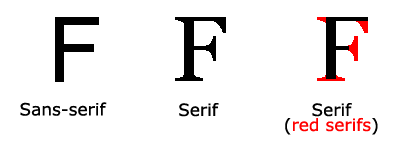
Serif vs. Sans-serif

CSS Font Families

In CSS, there are two types of font family names:
  • generic family - a group of font families with a similar look (like "Serif" or "Monospace")
  • font family - a specific font family (like "Times New Roman" or "Arial")

Generic familyFont familyDescription
SerifTimes New Roman
Georgia
Serif fonts have small lines at the ends on some characters
Sans-serifArial
Verdana
"Sans" means without - these fonts do not have the lines at the ends of characters
MonospaceCourier New
Lucida Console
All monospace characters have the same width


Note: On computer screens, sans-serif fonts are considered easier to read than serif fonts.

Font Family

The font family of a text is set with the font-family property.

The font-family property should hold several font names as a "fallback" system.

 If the browser does not support the first font, it tries the next font, and so on.

Start with the font you want, and end with a generic family, to let the browser pick a

 similar font in the generic family, if no other fonts are available.

Note: If the name of a font family is more than one word, it must be in quotation 

marks, like: "Times New Roman".

More than one font family is specified in a comma-separated list:


Example :


{
    font-family: "Times New Roman", Times, serif;
}


Font Style

The font-style property is mostly used to specify italic text.
This property has three values:
  • normal - The text is shown normally
  • italic - The text is shown in italics
  • oblique - The text is "leaning" (oblique is very similar to italic, but less supported)


Example :


p.normal {
    font-style: normal;
}

p.italic {
    font-style: italic;
}

p.oblique {
    font-style: oblique;
}


Font Size

The font-size property sets the size of the text.
Being able to manage the text size is important in web design. However, you should not use font size adjustments to make paragraphs look like headings, or headings look like paragraphs.
Always use the proper HTML tags, like <h1> - <h6> for headings and <p> for paragraphs.
The font-size value can be an absolute, or relative size.
Absolute size:
  • Sets the text to a specified size
  • Does not allow a user to change the text size in all browsers (bad for accessibility reasons)
  • Absolute size is useful when the physical size of the output is known
Relative size:
  • Sets the size relative to surrounding elements
  • Allows a user to change the text size in browsers
Note: If you do not specify a font size, the default size for normal text, like paragraphs, is 16px (16px=1em).

Set Font Size With Pixels

Setting the text size with pixels gives you full control over the text size:


Example :


h1 {
    font-size: 40px;
}

h2 {
    font-size: 30px;
}

{
    font-size: 14px;
}


Tip: If you use pixels, you can still use the zoom tool to resize the entire page.

Set Font Size With Em

To allow users to resize the text (in the browser menu), many developers use em instead of pixels.

The em size unit is recommended by the W3C.

1em is equal to the current font size. The default text size in browsers is 16px. So, the default size of 1em is 16px.

The size can be calculated from pixels to em using this formula: pixels/16=em


Example :


h1 {
    font-size: 2.5em; /* 40px/16=2.5em */
}

h2 {
    font-size: 1.875em; /* 30px/16=1.875em */
}

{
    font-size: 0.875em; /* 14px/16=0.875em */
}


In the example above, the text size in em is the same as the previous example in pixels. However, with the em size, it is possible to adjust the text size in all browsers.
Unfortunately, there is still a problem with older versions of IE. The text becomes larger than it should when made larger, and smaller than it should when made smaller.

Use a Combination of Percent and Em

The solution that works in all browsers, is to set a default font-size in percent for the <body> element:


Example :


body {
    font-size: 100%;
}

h1 {
    font-size: 2.5em;
}

h2 {
    font-size: 1.875em;
}

{
    font-size: 0.875em;
}


Our code now works great! It shows the same text size in all browsers, and allows all browsers to zoom or resize the text!

Font Weight

The font-weight property specifies the weight of a font:


Example :


p.normal {
    font-weight: normal;
}

p.thick {
    font-weight: bold;
}


Responsive Font Size

The text size can be set with a vw unit, which means the "viewport width".
That way the text size will follow the size of the browser window:


Hello World


Resize the browser window to see how the font size scales.


Example :


<h1 style="font-size:10vw">Hello World</h1>


Viewport is the browser window size. 1vw = 1% of viewport width. If the viewport is 50cm wide, 1vw is 0.5cm.


Font Variant


The font-variant property specifies whether or not a text should be displayed in a small-caps font.

In a small-caps font, all lowercase letters are converted to uppercase letters. 

However, the converted uppercase letters appears in a smaller font size than the original uppercase letters in the text.


Example :


p.normal {
    font-variant: normal;
}

p.small {
    font-variant: small-caps;
}


Monday, July 9, 2018

CSS Text


TEXT FORMATTING


This text is styled with some of the text formatting 

properties. The heading uses the text-align, text-transform,

 and color properties. The paragraph is indented, aligned,

 and the space between characters is specified. The underline

 is removed from this colored "Try it Yourself" link.


Text Color

The color property is used to set the color of the text. The color is specified by:
  • a color name - like "red"
  • a HEX value - like "#ff0000"
  • an RGB value - like "rgb(255,0,0)"
Look at CSS Color Values for a complete list of possible color values.

The default text color for a page is defined in the body selector.


Example :


body {
    color: blue;
}

h1 {
    color: green;
}


Note: For W3C compliant CSS: If you define the color property, you must also define the background-color.


Text Alignment

The text-align property is used to set the horizontal alignment of a text.

A text can be left or right aligned, centered, or justified.

The following example shows center aligned, and left and right aligned text (left 

alignment is default if text direction is left-to-right, and right alignment is default if 

text direction is right-to-left):


Example :

h1 {
    text-align: center;
}

h2 {
    text-align: left;
}

h3 {
    text-align: right;
}


When the text-align property is set to "justify", each line is stretched so that

 every line has equal width, and the left and right margins are straight (like in 

magazines and newspapers):


Example :

div {
    text-align: justify;
}


Text Decoration

The text-decoration property is used to set or remove decorations from text.

The value text-decoration: none; is often used to remove underlines from links:


Example :


{
    text-decoration: none;
}


The other text-decoration values are used to decorate text:

Example :


h1 {
    text-decoration: overline;
}

h2 {
    text-decoration: line-through;
}

h3 {
    text-decoration: underline;
}


Note: It is not recommended to underline text that is not a link, as this often confuses the reader.


Text Transformation

The text-transform property is used to specify uppercase and lowercase letters in a text.

It can be used to turn everything into uppercase or lowercase letters, or capitalize the first letter of each word:

Example :


p.uppercase {
    text-transform: uppercase;
}

p.lowercase {
    text-transform: lowercase;
}

p.capitalize {
    text-transform: capitalize;
}


Text Indentation

The text-indent property is used to specify the indentation of the first line of a text:

Example :


{
    text-indent: 50px;
}

Letter Spacing

The letter-spacing property is used to specify the space between the characters in a text.

The following example demonstrates how to increase or decrease the space between characters:

Example :


h1 {
    letter-spacing: 3px;
}

h2 {
    letter-spacing: -3px;
}


Line Height

The line-height property is used to specify the space between lines:


Example :

p.small {
    line-height: 0.8;
}

p.big {
    line-height: 1.8;
}

Text Direction

The direction property is used to change the text direction of an element:

Example :


{
    direction: rtl;
}

Word Spacing

The word-spacing property is used to specify the space between the words in a text.

The following example demonstrates how to increase or decrease the space between words: 


Example :


h1 {
    word-spacing: 10px;
}

h2 {
    word-spacing: -5px;
}


Text Shadow

The text-shadow property adds shadow to text.

The following example specifies the position of the horizontal shadow (3px), the 

position of the vertical shadow (2px) and the color of the shadow (red):


Example :


h1 {
    text-shadow: 3px 2px red;
}


All CSS Text Properties


PropertyDescription
colorSets the color of text
directionSpecifies the text direction/writing direction
letter-spacingIncreases or decreases the space between characters in a text
line-heightSets the line height
text-alignSpecifies the horizontal alignment of text
text-decorationSpecifies the decoration added to text
text-indentSpecifies the indentation of the first line in a text-block
text-shadowSpecifies the shadow effect added to text
text-transformControls the capitalization of text
text-overflowSpecifies how overflowed content that is not displayed should be signaled to the user
unicode-bidiUsed together with the direction property to set or return whether the text should be overridden to support multiple languages in the same document
vertical-alignSets the vertical alignment of an element
white-spaceSpecifies how white-space inside an element is handled
word-spacingIncreases or decreases the space between words in a text


Monday, July 2, 2018

CSS Outline


This element has a black border and a green outline with a width of 10px.


CSS Outline

An outline is a line that is drawn around elements, OUTSIDE the borders, to make the element "stand out".


CSS has the following outline properties:
  • outline-style
  • outline-color
  • outline-width
  • outline-offset
  • outline

Note: Outline differs from borders! Unlike border, the outline is drawn outside the element's border, and may overlap other content. Also, the outline is NOT a part of the element's dimensions; the element's total width and height is not affected by the width of the outline.


Outline Style

The outline-style property specifies the style of the outline, and can have one of the following values:
  • dotted - Defines a dotted outline
  • dashed - Defines a dashed outline
  • solid - Defines a solid outline
  • double - Defines a double outline
  • groove - Defines a 3D grooved outline
  • ridge - Defines a 3D ridged outline
  • inset - Defines a 3D inset outline
  • outset - Defines a 3D outset outline
  • none - Defines no outline
  • hidden - Defines a hidden outline
The following example shows the different outline-style values:
A dotted outline.
A dashed outline.
A solid outline.
A double outline.
A groove outline. The effect depends on the outline-color value.
A ridge outline. The effect depends on the outline-color value.
An inset outline. The effect depends on the outline-color value.
An outset outline. The effect depends on the outline-color value.

Example :


p.dotted {outline-style: dotted;}
p.dashed {outline-style: dashed;}
p.solid {outline-style: solid;}
p.double {outline-style: double;}
p.groove {outline-style: groove;}
p.ridge {outline-style: ridge;}
p.inset {outline-style: inset;}
p.outset {outline-style: outset;


Note: None of the other outline properties will have any effect, unless the outline-style property is set!


Outline Color

The outline-color property is used to set the color of the outline.
The color can be set by:
  • name - specify a color name, like "red"
  • RGB - specify a RGB value, like "rgb(255,0,0)"
  • Hex - specify a hex value, like "#ff0000"
  • invert - performs a color inversion (which ensures that the outline is visible, regardless of color background)
The following example shows some different outlines with different colors. Also notice that these elements also have a thin black border inside the outline:

A solid red outline.
A double green outline.
An outset yellow outline.

Example :


p.ex1 {
    border: 1px solid black;
    outline-style: solid;
    outline-color: red;
}

p.ex2 {
    border: 1px solid black;
    outline-style: double;
    outline-color: green;
}

p.ex3 {
    border: 1px solid black;
    outline-style: outset;
    outline-color: yellow;
}


The following example uses outline-color: invert, which performs a color inversion. This ensures that the outline is visible, regardless of color background:

A solid invert outline.


Example :


p.ex1 {
    border: 1px solid yellow;
    outline-style: solid;
    outline-color: invert;
}


Outline Width

The outline-width property specifies the width of the outline, and can have one of the following values:
  • thin (typically 1px)
  • medium (typically 3px)
  • thick (typically 5px)
  • A specific size (in px, pt, cm, em, etc)
The following example shows some outlines with different widths:

A thin outline.
A medium outline.
A thick outline.
A 4px thick outline.


Example :


p.ex1 {
    border: 1px solid black;
    outline-style: solid;
    outline-color: red;
    outline-width: thin;
}

p.ex2 {
    border: 1px solid black;
    outline-style: solid;
    outline-color: red;
    outline-width: medium;
}

p.ex3 {
    border: 1px solid black;
    outline-style: solid;
    outline-color: red;
    outline-width: thick;
}

p.ex4 {
    border: 1px solid black;
    outline-style: solid;
    outline-color: red;
    outline-width: 4px;
}


Outline - Shorthand property

The outline property is a shorthand property for setting the following individual outline properties:
  • outline-width
  • outline-style (required)
  • outline-color
The outline property is specified as one, two, or three values from the list above.

 The order of the values does not matter.

The following example shows some outlines specified with the 

shorthand outline property:

A dashed outline.
A dotted red outline.
A 5px solid yellow outline.
A thick ridge pink outline.


Example :


p.ex1 {outline: dashed;}
p.ex2 {outline: dotted red;}
p.ex3 {outline: 5px solid yellow;}
p.ex4 {outline: thick ridge pink;}


Outline Offset

The outline-offset property adds space between an outline and the edge/border of an element. The space between an element and its outline is transparent.
The following example specifies an outline 15px outside the border edge:
This paragraph has an outline 15px outside the border edge.

Example :


{
    margin: 30px;
    border: 1px solid black;
    outline: 1px solid red;
    outline-offset: 15px;


The following example shows that the space between an element and its outline is transparent:
This paragraph has an outline 15px outside the border edge.

Example :


{
    margin: 30px;
    background: yellow;
    border: 1px solid black;
    outline: 1px solid red;
    outline-offset: 15px;
}